Guided Video Tutorial
Registration Process
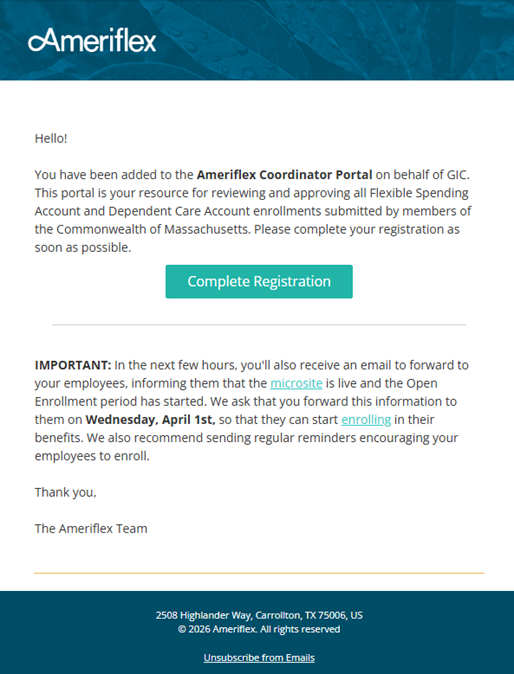
All coordinators from the GIC list received the following welcome/registration email from ameriflex@myameriflex.com, instructing them to register for the coordinator portal.
Reviewing Enrollments
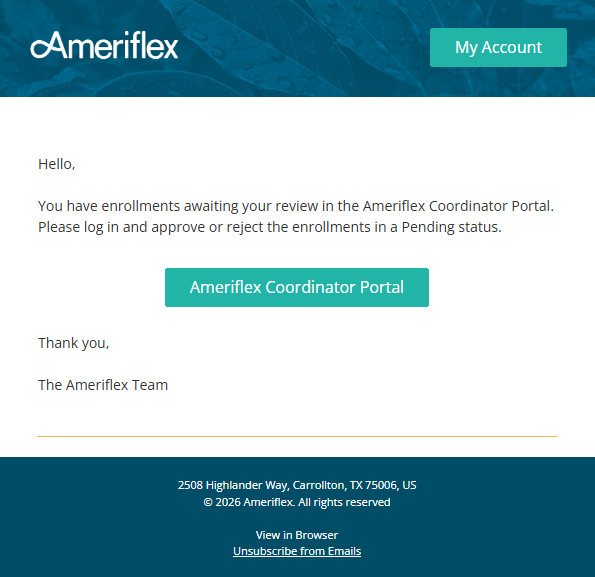
To review enrollments, you will log into the coordinator portal at https://massgic.myameriflex.com/coordinator. Coordinators will receive a daily enrollment reminder email as long as they have pending enrollments awaiting review in their Coordinator Portal.
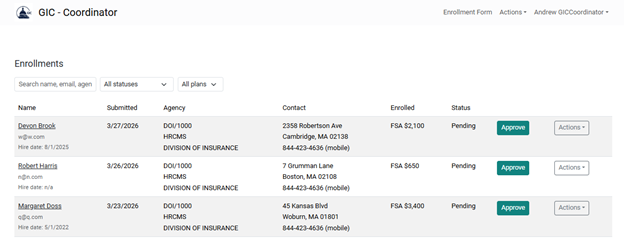
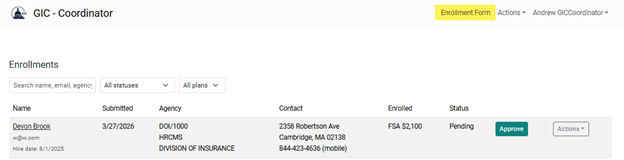
Once logged into the Coordinator Portal, you will see a list of any enrollment forms submitted with your agency selected, if any have been submitted.
Enrollment Statuses
- Pending: submitted by member, awaiting GIC coordinator’s review
- Approved: enrollment form approved by the GIC coordinator
- Review Requested: reviewed by GIC coordinator and moved to Cameron McBean’s team
- Rejected: Enrollment form rejected, email sent to member
- Completed: The form has been processed by Ameriflex and no further changes can be made to it.
- Error: The form could not approved by Ameriflex and the reasoning is provided. If needed, complete a new form and Approve.
Filtering Enrollment Forms
You can filter the list of submitted enrollment forms by Status or Plan Type. You may also search by keywords such as the member's name or email address.
As a GIC user, you can also review the full details of the enrollment submission by clicking on the member's name or by clicking the Actions dropdown menu and selecting the Edit option.
When reviewing these details, you may edit the Agency (only to another agency you are the Coordinator of, if applicable), the Employee ID, the Hire Date, and the Elections made.
Approving/Rejecting Enrollments
Approving Enrollments
To approve a pending enrollment, click the Approve button.
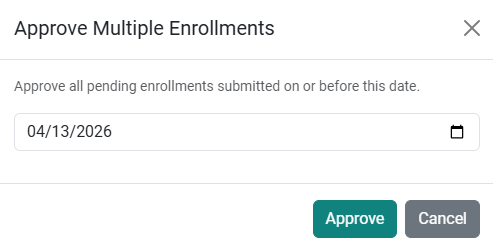
Alternatively, if you have more than 1 enrollment form, you can approve enrollments in larger batches using the Approve Multiple Enrollments button.
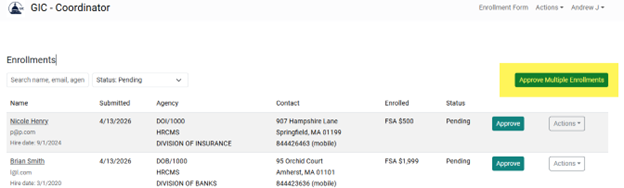
Click this button to Approve ALL enrollment forms up to a given date. A good use for this would be to reject any forms that do not belong up to that date, and then approve all enrollment forms up to that date.
Rejecting Enrollments
If the enrollment form was submitted in error, you may Reject it from the Actions dropdown menu.
Rejecting an enrollment form displays a menu to select an optional reason, and you can also choose whether to send a rejection email to the member.
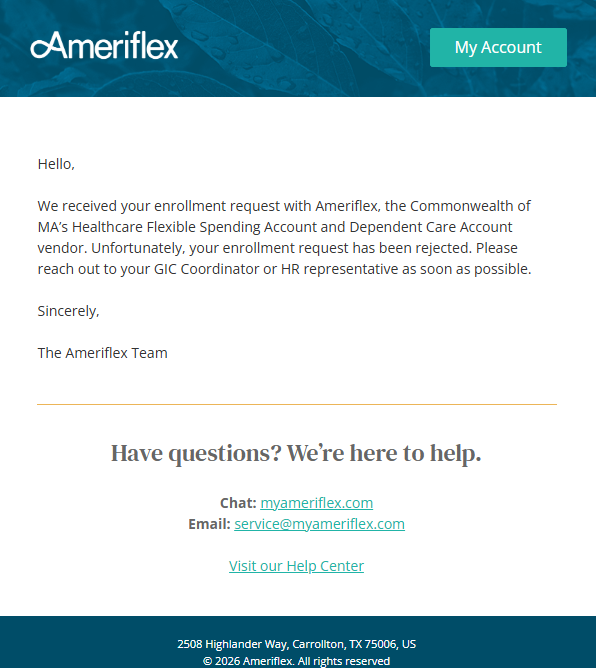
Rejection Email to Members
If you reject an enrollment, members will receive the following email:
Requesting Review of an Enrollment
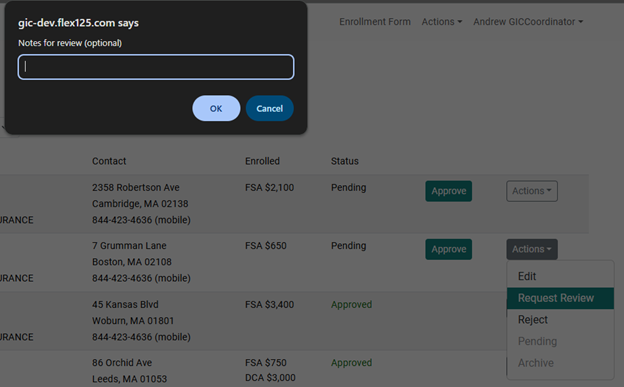
If you are unable to identify the member from the submitted form, use the Request Review button to send it to Cameron McBean and the team.

Requesting a review of an enrollment form opens a menu with space to provide an optional reason, which is shown to Cameron's team.
Submitting Enrollment Forms on Behalf of Members
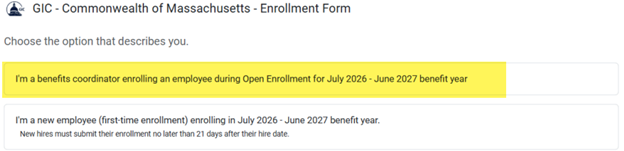
From the Coordinator Portal, you may also complete and submit an enrollment form on behalf of a member by using the Enrollment Form link at the top right of the page.
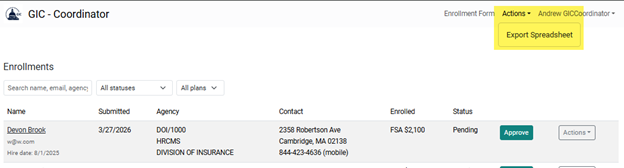
From the Actions dropdown menu at the top right of the page, you can select Export Spreadsheet to download a spreadsheet that includes the information for all submitted enrollment forms for your agency.
Example of the spreadsheet export of enrollment forms:

Additional Notes
-
For Open Enrollment, cards will not be mailed until the beginning of June.
-
For new hires who complete forms after June, cards will be issued as soon as their GIC Coordinator approves their enrollment in the Coordinator portal.
- If you are also an Employer Portal user, your login credentials for the Employer Portal/Coordinator Portal are the same. By logging into the Employer Portal, you will automatically be logged into the Coordinator Portal if you visit https://massgic.myameriflex.com/coordinator.
After Open Enrollment
- Beginning on 5/2/2026, the Open Enrollment form will no longer be available. Any late enrollees will need to contact their Agency’s Coordinator to enroll.
- The OE Enrollment form will be replaced by the very similar New Hire Enrollment form on 5/2, which will be on the microsite at http://myameriflex.com/massgic. The New Hire enrollment form is the same and follows the same process listed above. The only difference is that the Hire Date is required on the New Hire enrollment form.
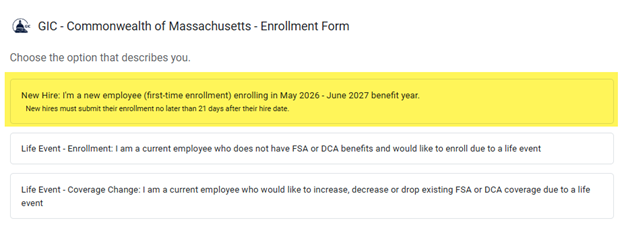
A Coordinator logged into the Coordinator Portal will still have a link to the OE form available for late enrollees until 7/1/2026. See below: