Guided Tutorials
Change Form & Reclassifications for Coordinators
Terminations for Coordinators
Changes will be executed using one of the following “Life Event” actions, which have now been added.
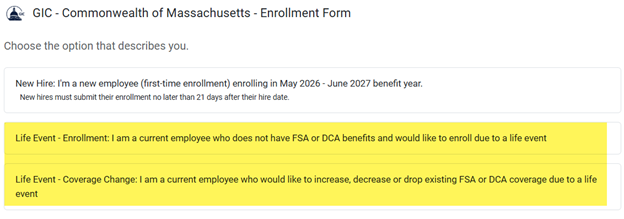
- Life Event - Enrollment would be for a newly eligible employee who had a QLE.
- Life Event - Coverage Change would be for an employee with an FSA or DCA already who wishes to change it due to a QLE.
QLE Change Form - Enrollment
The Life Event form for a new enrollment is very similar to the New Hire and the Open Enrollment form.
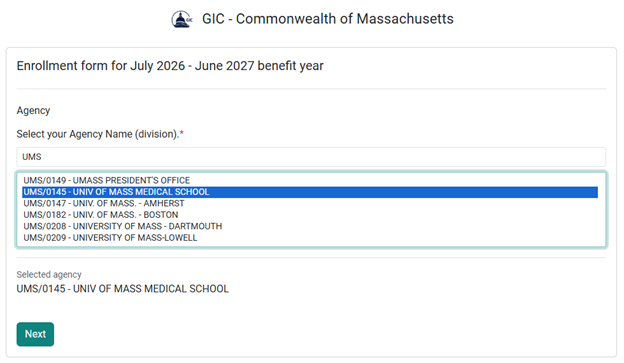
1. The member must select the correct Agency they belong to. This list is searchable, so keywords like “UMS” or “Housing” can filter only results that match.
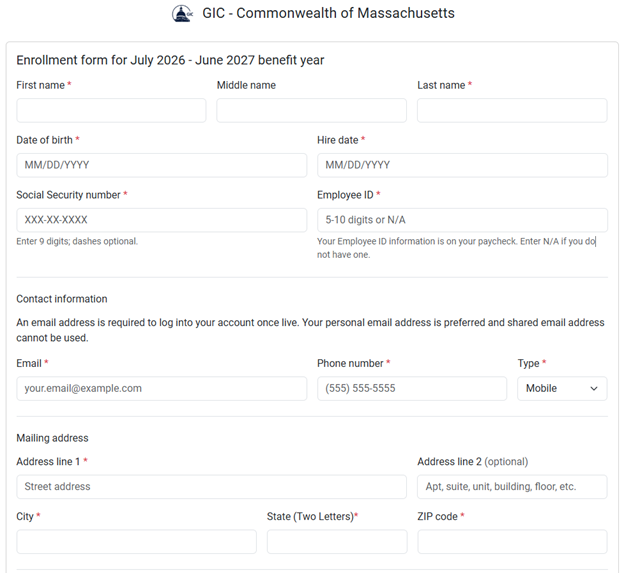
2. Next, the member will supply their demographic and Annual Election information for their enrollment into either the Flexible Spending Account (FSA) or the Dependent Care Assistance Program (DCA)
–Hire Date will accept N/A
–Employee ID will accept N/A
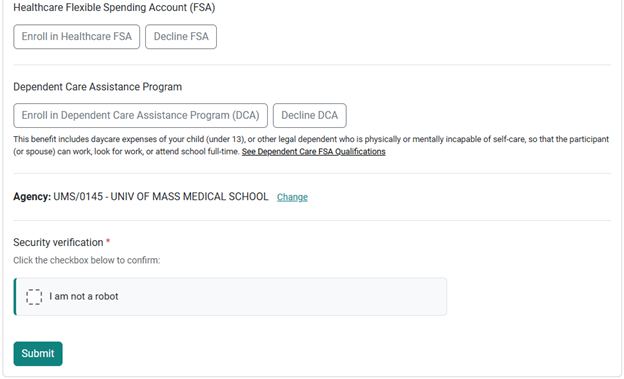
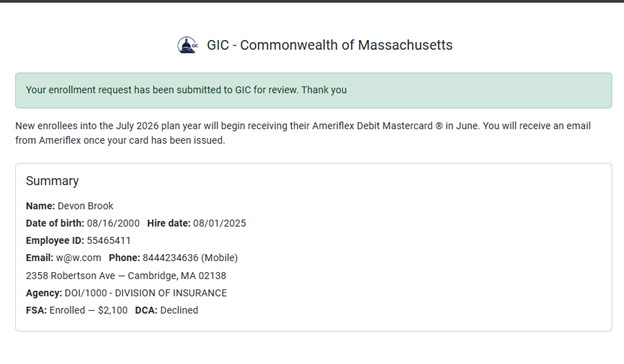
3. Once the member clicks Submit, they will receive a confirmation page which they can save for their records. They will also receive a confirmation email from no-reply@mail.myameriflex.com.
Reviewing QLE Change Forms
Submitted forms will go into a Pending status on the Coordinator Portal.
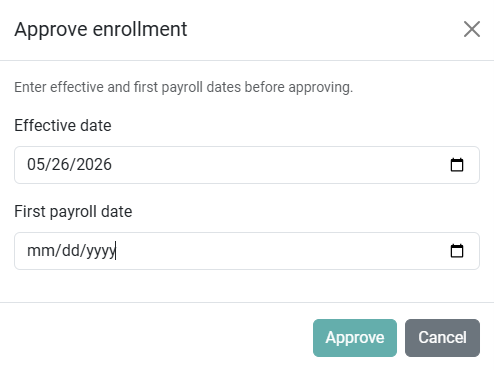
The GIC Coordinator is responsible for reviewing and approving/rejecting all QLE Forms. The Coordinator will be required to provide the Change Eff Date and the Payroll Date for the change prior to Approving a form.
1. To review a change form in the Coordinator Portal, click the hyperlinked Name of the form to see the member's QLE supporting documentation.
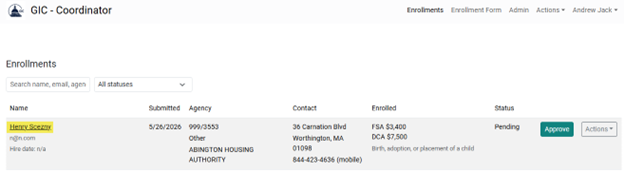
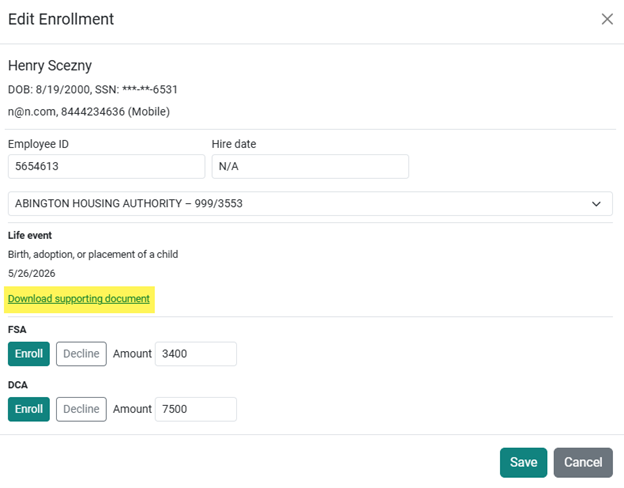
2. Upon clicking Approve, you will be required to provide the Effective Date and the First Payroll Date. The Effective Date will be pre-populated with the QLE Date entered on the form.
QLE Change Form - Coverage Change
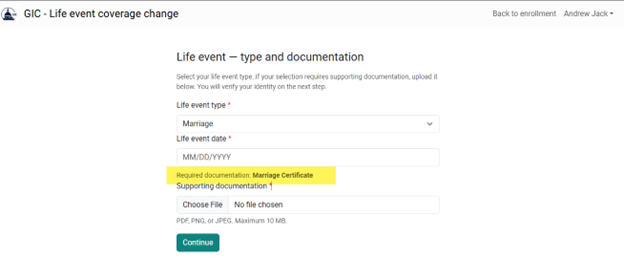
The Life Event form for a Coverage Change starts by requiring the member to enter the QLE type and the QLE Date. The member must also upload supporting documentation for their QLE change request. Based on the Event Type, the form will recommend the types of documentation they should upload.
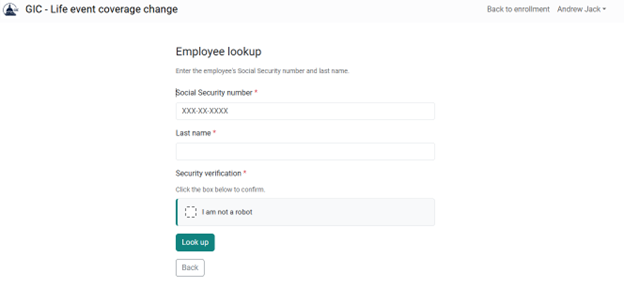
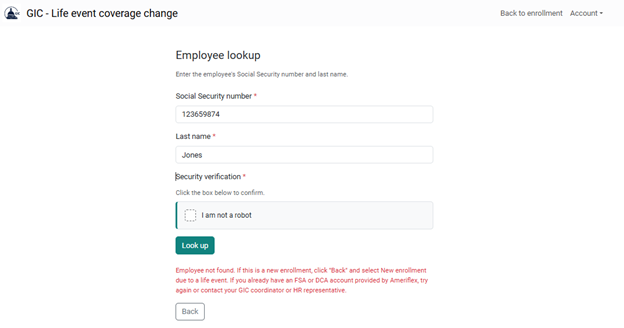
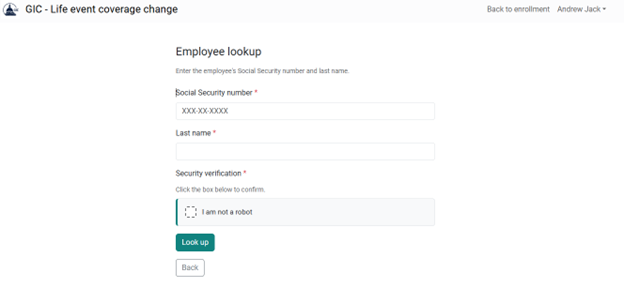
Next, the member must look themselves up using their full SSN and their Last Name (this information must match what they’ve previously enrolled using).
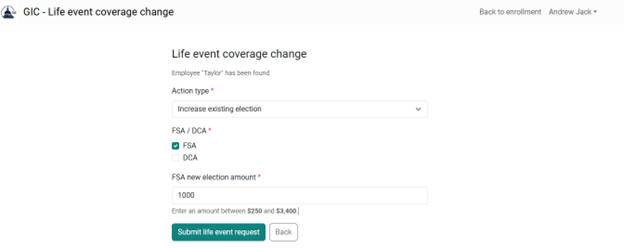
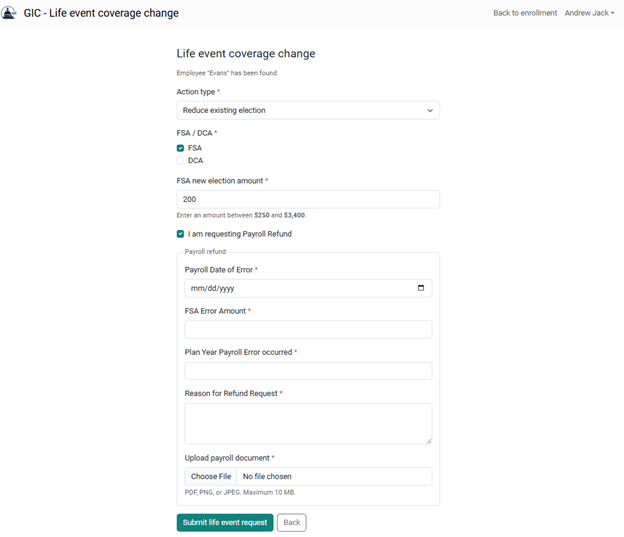
If found, the member may enter the details of their change including whether they are increasing/decreasing their elections.
If the Social Security Number and Last Name do not match anyone currently enrolled, the member will receive an error message, "Employee not found." If this is a new enrollment, the member should click "Back" and select New enrollment due to a life event. If the member already has an FSA or DCA account provided by Ameriflex, they should try again or contact their GIC coordinator or HR representative.
If the member requests a decrease to their existing election, they will also be asked whether a Payroll Refund is required, and, if so, they will be required to provide details of the payroll refund AND supporting documentation.
QLE Change Form - Reclassification
A Reclassification will also be completed from the QLE Coverage Change Form.
When choosing Reclassification, the member will be required to select the new Agency they are joining.
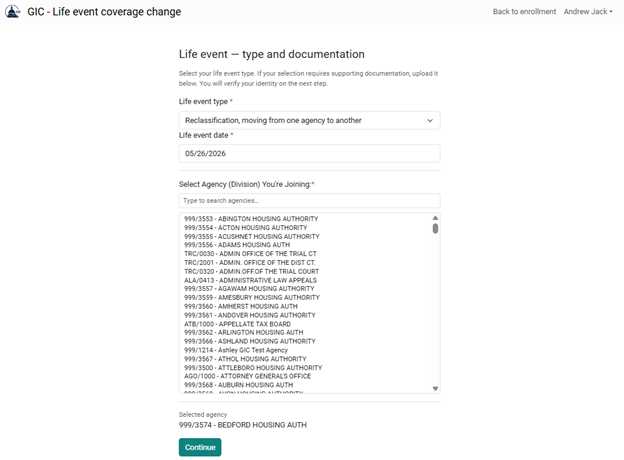
For a reclassification only, the member would select the Action Type of No Changes on the next screen and submit.
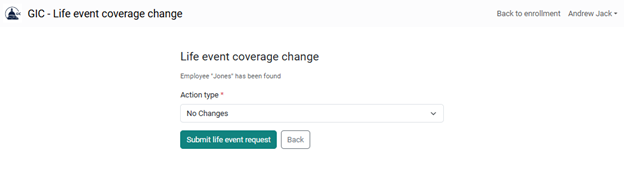
A submitted reclassification will be sent to the Coordinator Portal of the coordinators in the new agency. The reclassification request must be approved by the GIC Coordinator.

QLE Change Form - Termination
A Termination will be completed from the Actions dropdown of the Coordinator Portal.
1. In the Coordinator Portal, choose the Termination Request option from the Actions dropdown.

2. Next, look up the member using their full SSN and their Last Name (what you enter here must match what the member previously enrolled using).
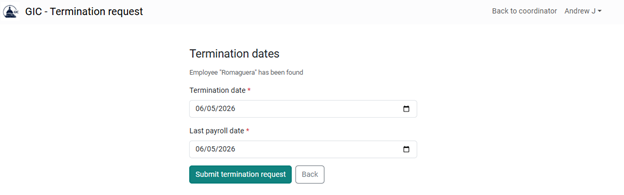
3. When submitting a Termination Life Event, you must provide the termination date and the last payroll date.